
Insert an unsubscribe link
Every marketing message should include a visible and working way to unsubscribe.Insert a link from the editor
1
Open the email editor
Open the content editor for your campaign.
2
Choose the insertion point
Place the cursor where the link should appear.
3
Insert the unsubscribe link
Select Insert unsubscribe link and choose a language.
- Rich-text editor
- Drag-and-drop editor

Use custom linked text
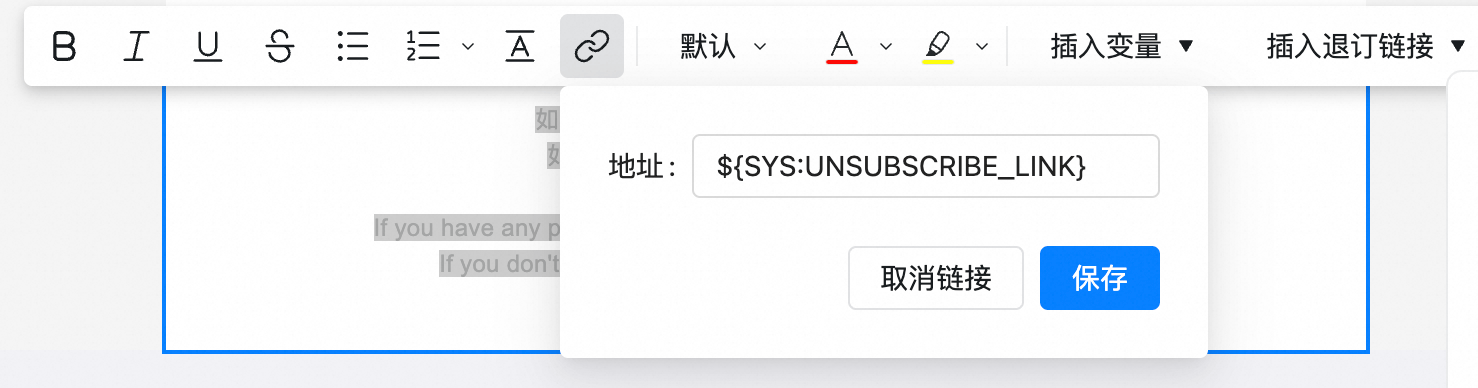
Select your unsubscribe wording, insert a hyperlink, and use${SYS:UNSUBSCRIBE_LINK} as the URL.
What happens after a contact unsubscribes
- The contact is marked Unsubscribed.
- Sendify records the campaign and sender address associated with the opt-out.
- Future campaigns using that sender address automatically exclude the contact.
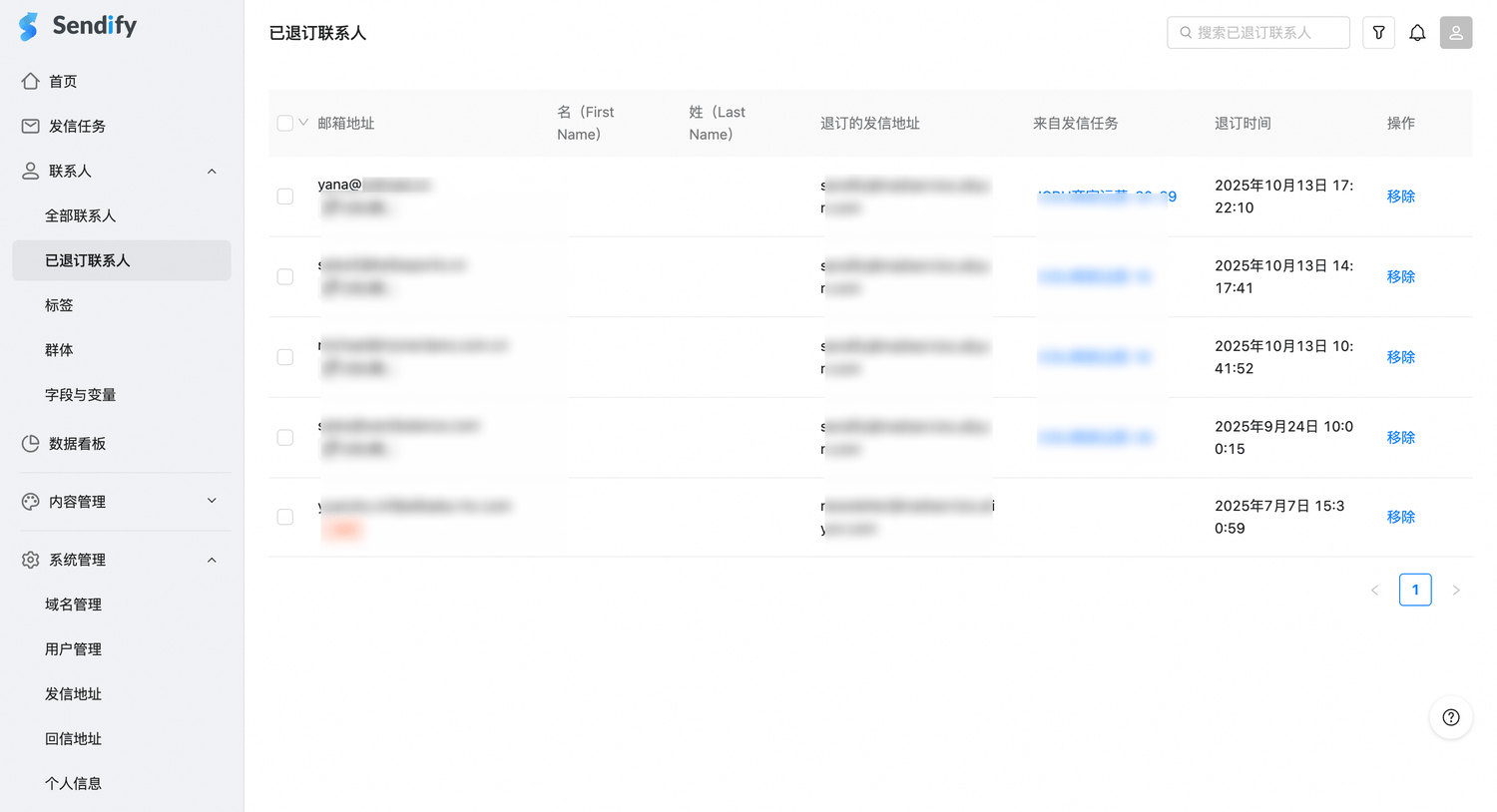
View unsubscribed contacts
Contacts → Unsubscribed contacts
The list includes the email address, unsubscribe time, sender address, and originating campaign.
Restore a subscription
1
Open unsubscribed contacts
Go to
Contacts → Unsubscribed contacts.2
Find the address
Search for the email address.
3
Remove the unsubscribe status
Select Remove. 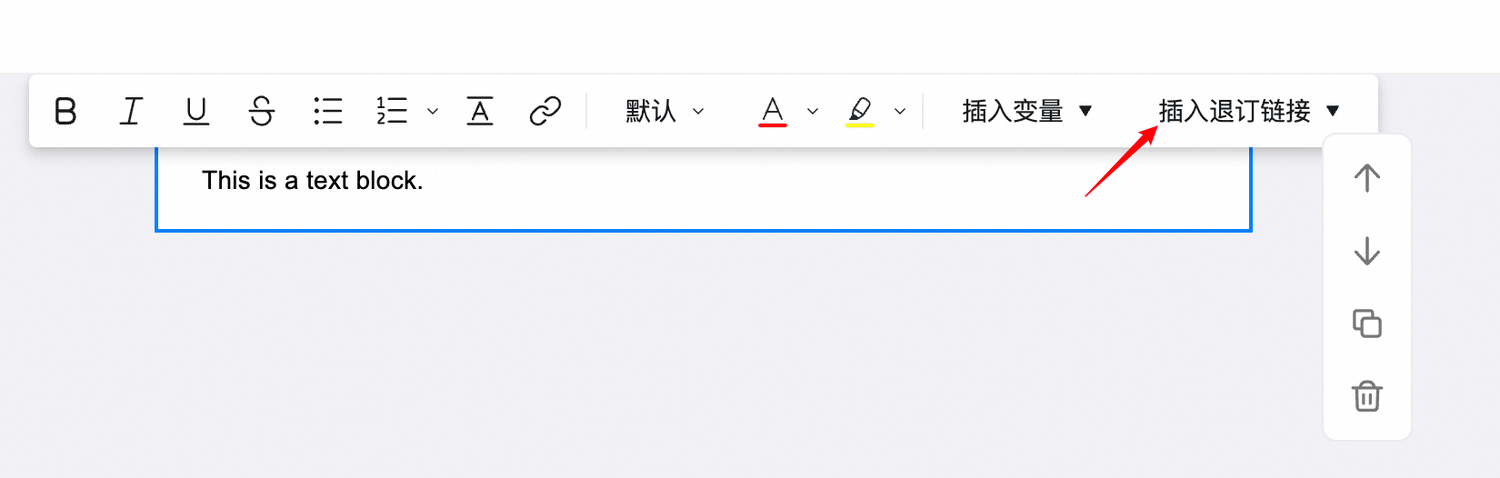
4
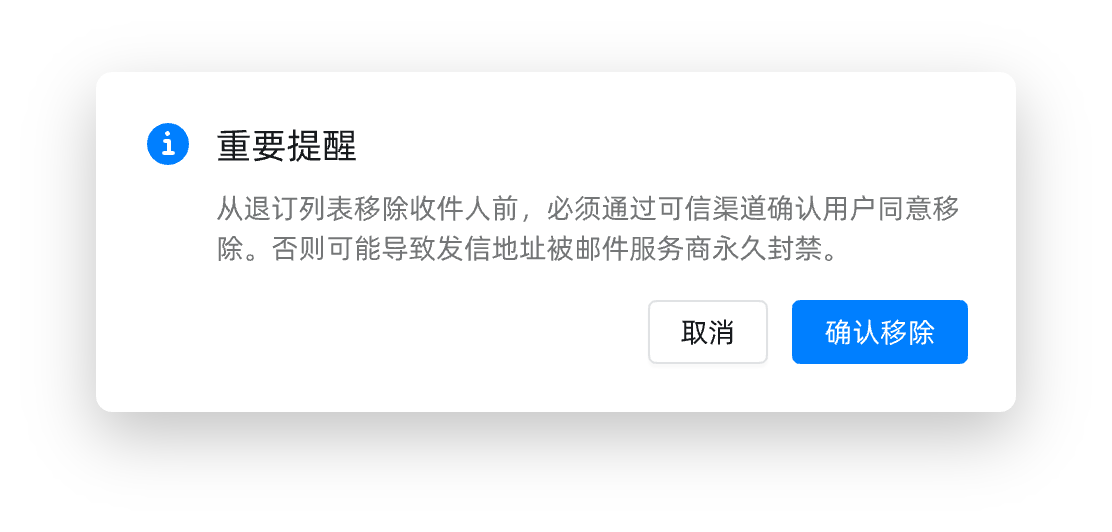
Confirm
Confirm the removal so the contact can receive future campaigns.